
CTOL Homepage Faculty Professional Development Assessment Accessibility
At SPSCC we have a number of tools available to help with your online instruction. Open the pages below to get information about how to use these tools.
Use the quick links below to prepare your course shells, access core teaching tools, and troubleshoot common questions before and during the term.
Key steps to complete before publishing your course to students:
Essential workflows for day-to-day instruction and student interaction:
Solutions for frequently encountered technical and navigation questions:
"My students can't see a module, page, or assignment."
"How do I see what my course looks like to students?"
"How do I clean up or hide course menu options?"
"Canvas isn't loading properly or pages are blank."
Hypothesis is a social annotation tool that can be integrated into your Canvas course. Instructors select a text (a PDF or webpage) for students to read. Students are then able to read the text and annotate it as they read, adding highlights, text, or images in a class conversation.
If you are curious about adding Hypothesis content into your course, contact the Center for Teaching and Online Learning for support, or visit the Hypothesis help pages for many useful guides to get started.
For ongoing Hypothesis training, check the CTOL calendar or go to a Hypothesis workshop!
Follow the steps below (or read these instructions from Hypothesis) to set up a Hypothesis assignment. You don't need to install anything in Canvas.
Sometimes Hypothesis assignments don't work because the file is actually in another Canvas course. This usually happens with a copied Canvas course. If students report being unable to open the Hypothesis assignment, please re-upload your file to the current Canvas course or reach out to CTOL for support. We can quickly troubleshoot what is causing the issue.
Sometimes a Hypothesis assignment has an issue if you set it up using a URL instead of a Canvas file. This happens when a URL changes. Because of this, we recommend uploading your PDF files directly into Canvas instead.
Hypothesis should be as accessible as the documents that have been loaded in it are. That means, you must be sure that your documents are actual text that can be read by a screen reader.
CTOL can provide support with Hypothesis, and in our experience, Hypothesis is also really responsive to support questions. You can search the Hypothesis help center or submit a help request here.
You are also able to submit a support ticket directly with Hypothesis, as well as schedule a 1:1 appointment to screenshare and get live support.
H5P is a plugin that allows instructors to create accessible interactive content for their courses. The H5P plugin is available to all instructors within Canvas. With H5P you can create new, interactive activities or modify current assignments to make them more accessible and engaging.
There are many types of H5P activities: H5P Content Types & Examples.
To start making H5P content, simply go to a page or assignment in Canvas, or create H5P content on the SPSCC H5P page.
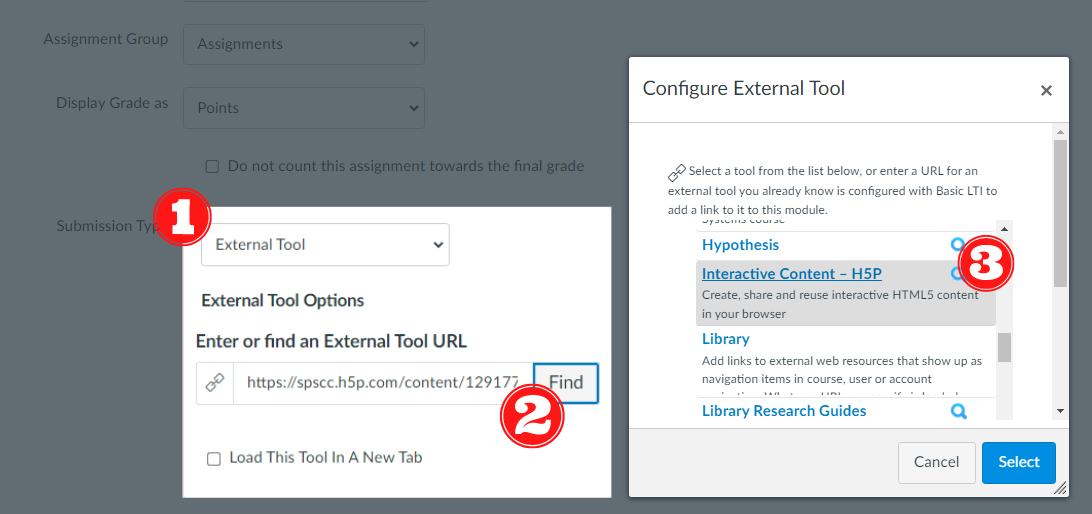
To add ungraded H5P, click the H5P button in the rich content editor. To add grade H5P activities to an assignment, go to the submission type menu and click external tool. Find and select Interactive Content – H5P.
To Add Ungraded H5P Content
Use the H5P icon in the rich content editor (the toolbar in a Canvas page or assignment).

To Add Graded H5P Content
Click Submission Type and select External Tool. Then find "Interactive Content - H5P" from the menu and click select.
As an institution that makes the Microsoft Office suite of tools readily available to our students, it is important to encourage them to make the most of these tools and all of the features they have. It is important to also remember that most of our students coming from high school are only or mostly familiar with the Google platform and may not even be aware that they have free access to Microsoft. Below are a few resources that can be useful for the instructional environment.
Switch to Microsoft 365 from Google Workspace - Microsoft Support
Microsoft 365 Quick Starts - Microsoft Support
Outlook training - Microsoft Support
PowerPoint for Windows training - Microsoft Support
OneDrive video tutorials - Microsoft Support
Accessibility video training - Microsoft Support
Canvas has updated to the Microsoft Education LTI suite. This updated integration brings your Microsoft 365 apps—including OneDrive, Teams, and Office tools—directly into Canvas through a unified dashboard.
With this setup, you can embed live-updating documents, create interactive cloud template assignments, and automatically sync your course rosters with Microsoft Teams.
Before using Microsoft tools in your Canvas course for the first time, you will need to complete a brief one-time setup to choose which apps are visible to your students.
Once finished, clicking Microsoft Education in your menu will take you straight to your course Dashboard.
If you need to add or remove tools later in the term:
Instead of re-uploading static files every time you make an update, you can embed a live document (Word, PowerPoint, Excel) from your OneDrive directly into any Canvas page, announcement, or discussion. Any changes you make to the file in OneDrive will automatically update inside Canvas.
Using the External Tool integration, you can distribute template files (like worksheets or lab reports) to your students. Canvas generates an individual copy for each student to complete and submit directly within the assignment.
You can set up a Microsoft Team within your Canvas course to facilitate student conversation, group work, and real-time announcements.
Access Course Integrations
In your Canvas course left navigation menu, go to Settings, then click the blue Integrations tab in the top row.
Enable & Trigger Microsoft Sync
Click the slider button next to Microsoft Sync to enable the integration, click the arrow icon (>) next to Microsoft Sync to reveal details, and click the Sync Now button.
Note: Once enabled, enrollment updates automatically trigger a sync. Changes can take up to 10 minutes to reflect in Microsoft Teams.
Open Microsoft Teams Classes
Once synced, your course navigation menu item will update to Microsoft Teams classes. Click this link from your left course menu to view your auto-generated class tile.
Activate the Team for Students
Click the class tile to open the Teams app or web client. Set up your channels, upload files, or create a OneNote Class Notebook if desired, then click Activate at the top of the team banner to make it visible to students.
Panopto website updates:
Panopto is the tool that SPSCC uses to host videos in Canvas. You can record, upload, and edit videos in Panopto. Panopto is also connected to your Zoom account and embedded in your Canvas classes.
For additional Panopto support, contact ctol@spscc.edu
Accessing Panopto
Here is the direct link to Panopto. Your Panopto login information is your Clipper ID and password. You will need to “Authorize” Panopto to access your Canvas account. This is the full Panopto site to edit and organize videos.
You can also access Panopto by clicking on the "Panopto Recordings" link in your Canvas Navigation menu if it is visible.
From Canvas, on any Panopto video, you can also click the Open in Panopto icon  on the right of the screen to get into your Panopto account. Once you click the icon, then click on the “Panopto” logo in the top left corner of the window.
Installing the Panopto Application
On an SPSCC device: You will need support from the SPSCC Helpdesk (596-5544) to install Panopto on your college computer. Help technicians can remotely install your Panopto recorder while you're on the phone with them!
On your personal device: You will need to download and install the latest version of Panopto Recorder. The software should prompt you to download the latest version of Panopto when you try to use it as the application.
Check your Panopto Application Version
For Panopto to function correctly, you will need to update or install the latest version (9.02 or higher) on your device. In the Panopto app, you can check your version by clicking on Settings (the gear icon). The version number will be displayed in the bottom right of the window.
Panopto Learning Resources
Panopto has a full Support Center to help you learn how to use Panopto. This should be your first stop for instructional videos on how to use Panopto.
CTOL Panopto Training Videos
The CTOL has also created an SPSCC specific video list for you to view as well. Click the name of the video to read more about it and view the video:
What Panopto does as video recording and editing software
Why use Panopto
Key Benefits of Using Panopto
Panopto Resources
Record videos to Panopto using Zoom
Record Videos to Panopto using Canvas
Record video in Panopto
Folder structure
Where to find Zoom videos in Panopto
Where to find Canvas videos in Panopto
Moving Videos between courses
Trimming and cutting videos
Enhancing Audio
Editing Captions
Adding Quizzes to Videos
Renaming Contents Section
Change video name and folder location
Move video to another folder
Sharing Video Options
Finding Transcripts for Videos
Analytics Overview
Additional Panopto Resources
Webinar Recording – one hour recording of the Panopto Creator Training for SBCTC
SBCTC Panopto FAQ – document contains answers to frequently asked questions during the webinar
SBCTC Additional Questions – document contains answers to additional questions asked during the training webinar
Panopto Support
Panopto Support Center – page contains links to Panopto support documentation, video tutorials, and forums
Getting Started Guide – page contains a collection of resources for getting started with Panopto
Video Tutorials – page contains links to a variety of “how-to” Panopto video tutorials
Panopto Community – search the Panopto Community for answers to questions you may have
Pressbooks is simple book production and content management system software based on WordPress technology. You can find and publish OER (Open Educational Resources) textbooks, online media collections, scholarly articles, syllabi, fiction and non-fiction books, white papers, and more in multiple formats including:
Books designed in Pressbooks also have integration with H5P activities, can be imported into Canvas, and can be customized to serve your own courses. As such, they can be a robust alternative to expensive textbooks.
For support finding OER for your courses, please contact SPSCC's OER librarian, Ryer Banta, or check out the library's Faculty and Staff Guide on Open Education.
In addition, SPSCC's Alaka Pradhan has created this online introduction to Pressbooks.
To Sign in to Pressbooks for the first time, go to SPSCC's Pressbooks site and click on the Sign in link in the upper right-hand corner ( please do not use the sign up link, or your authentication will not work).
You will be redirected to the SPSCC Authentication page, where you will enter your college email and email password. When authentication is complete you will return to the SPSCC Pressbooks page.
If you'd like a hand getting started with Pressbooks creation, please contact Ryer Banta or visit the Pressbooks user guide.
Pressbooks allows each institution three "Network Managers" who may act as support contacts if you need help from Pressbooks technical support. If you need network-level support or need to get in touch with Pressbooks' own support team, contact Ryer Banta or ctol@spscc.edu.